.webp)
Microsoft Dynamics 365 Business Central is a cloud ERP used by SMBs and mid-market companies to run finance, sales, inventory, and operations in one place. If your product serves businesses that already work in Business Central, integrating with it lets you:
- Sync accounting data automatically , clients, suppliers, invoices, and journal entries flow between systems without manual entry.
- Push and pull financial records in real time, so books stay up to date and reconciliation happens faster.
- Cut down on errors by removing the copy-paste work between your product and your customers' ERP.
- Serve customers across Europe who rely on Business Central as their financial backbone.
This guide covers everything you need to know about the Business Central API, how it's built, how to set it up, and the best practices that keep your integration fast and reliable. We'll also show how Chift's Unified Accounting API helps you skip the heavy lifting.
What is the Business Central API?
Business Central exposes a standard OData API secured via OAuth 2.0. OData gives you a predictable, RESTful way to query and write data, with built-in support for filtering, pagination, and relationships between entities.
There's a second layer worth knowing about. Business Central extensions can declare their own APIs on top of the standard one. This is a powerful mechanism: it lets developers expose data and operations the default API doesn't cover. Chift uses exactly this system, we publish a dedicated Business Central extension on the Microsoft marketplace to extend the standard API and improve the coverage of our Unified Accounting API.
Through the API, you can access the core financial entities you'd expect from an ERP: customers, vendors, sales and purchase invoices, journal entries, chart of accounts, VAT/tax information, and more.
You can find the full technical reference in Chift's Business Central documentation and in Microsoft's official developer docs.
Connect to all popular solutions with a single integration
Discover how Chift's Unified APIs have helped software vendors quickly add dozens of integrations.
Examples of Business Central API integration use cases
Integrating with Business Central opens up real opportunities to enrich your product. Here's how software vendors across categories put Business Central data to work through Chift's Unified Accounting API.
Connecting vertical ERPs to accounting
Vertical and industry-specific ERPs can export financial records, such as supplier and client invoices, and generate accounting entries directly in Business Central. This removes repetitive manual work and keeps the books aligned with what happens in the operational tool, saving time for business owners and their accountants alike.
.jpeg)
Cash flow monitoring and forecasting
Cash flow management platforms can pull balances, journal entries, and financial data from Business Central to deliver accurate, accountant-grade insights. They can also push pre-accounting data back, so entries are generated automatically and finance teams always work from a current picture.
.jpeg)
Powering credit decisions for lending platforms
Business lenders can connect to Business Central to retrieve real-time accounting data, outstanding invoices, receivables aging, and revenue trends, to assess creditworthiness faster and monitor loan performance over time. This turns static, point-in-time lending into a dynamic relationship built on live financial data.
.jpeg)
For more examples of how accounting integrations can improve your product, explore our Chift case studies.
Setting up your Business Central API integration
Connecting to Business Central means registering an application in Azure and granting it the right access to your customer's data. Here's the path:
- Create an Azure account if you don't already have one.
- Register a multi-tenant Azure app and add Chift's redirection URL to it. Multi-tenant registration is what lets the same app authenticate across all your customers' Business Central environments.
- Configure the app's permissions so it has rights to the appropriate data in Business Central. These work much like auth scopes for a classic OAuth application, you grant only what the integration needs.
- Connect through Chift and start syncing.
You'll find the complete, step-by-step setup in Chift's Business Central documentation.
The OAuth flow itself is developer-friendly, but a production-grade integration involves more than authentication. You'll need to normalize data across accounting tools, handle multi-tenant onboarding, and maintain the connection as Microsoft and your customers' configurations change over time. That's the part Chift takes off your plate.
Best practices for Business Central API integration
A few connector-specific recommendations will keep your integration fast, resilient, and easy to debug.
- Respect the concurrency limits. Business Central online allows a maximum of 5 concurrent requests, requests beyond that are queued, and a maximum of 100 concurrent connections (counting both in-process and queued requests). Build your sync logic with these ceilings in mind to avoid throttling.
- Use the OData $batch endpoint. When you need to process several requests at once, or when transactionality matters, batch them. With the right header, the batch runs inside a single database transaction, so operations either all succeed or all roll back together.
- Build around virtual models. Some standard endpoints rely on virtual models that aggregate data from multiple tables. These can become performance bottlenecks and cause timeouts. Identify them early and design your read patterns to avoid hammering them.
- Lean on the error messages. Business Central returns very verbose errors, with codes and descriptions. Parse and surface these properly so your end users get clear, actionable feedback instead of a generic failure.
- Refresh OAuth tokens cleanly and store credentials securely, scope app permissions to the minimum the integration actually needs.
Connect to Business Central, Pennylane, Sage, and more with a single integration
Building a direct connection to Business Central takes time, effort, and ongoing maintenance, especially once you also need to integrate every other accounting tool your customers ask for.
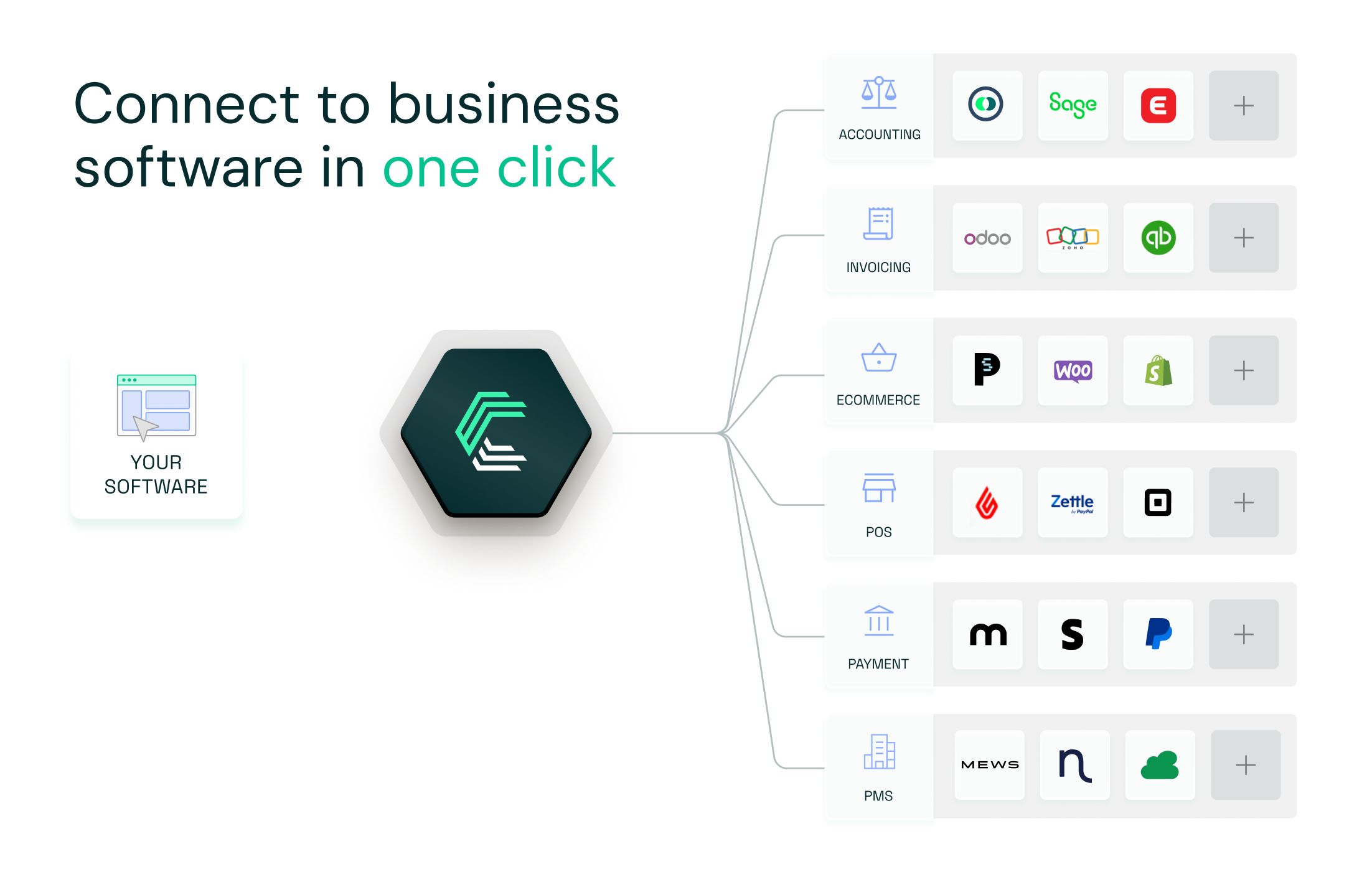
With Chift's Unified Accounting API, you connect once and access Business Central, Pennylane, Sage, Cegid, Exact Online, Odoo, and many more through one consistent data model.
- Single integration for dozens of accounting tools
- Built-in support for OAuth 2.0, pagination, and rate limits
- Unified and standardized data
- Real-time sync and advanced monitoring
- Seamless experience for your users
Curious to discover more on how to integrate easily? Book a demo
Business Central API FAQ
What endpoints are included in the Business Central API?
Chift's Business Central connector exposes a broad set of standardized accounting endpoints, including (but not limited to):
- Clients
/clients - Suppliers
/suppliers - Invoices
/invoices - Journal Entries
/journal-entries - Chart of Accounts
/accounts - VAT Codes
/vat-codes
Consult our Business Central API documentation for a full list of available routes.
What are the Business Central API rate limits?
Business Central enforces request rate limits that depend on the environment: 300 requests per minute on sandbox and 600 requests per minute on production. On top of that, the platform caps concurrency at 5 concurrent requests and 100 concurrent connections. Design your retry and backoff logic around these numbers to stay within bounds and keep syncs smooth.
Why does Chift use a Business Central extension?
The standard OData API doesn't cover every piece of data our Unified Accounting API needs. Business Central lets extensions declare their own APIs, so we publish a dedicated extension on the Microsoft marketplace that broadens coverage. The result is a more complete, consistent integration than the standard API alone provides.
What do I need in Azure to connect?
You'll register a multi-tenant Azure app, add Chift's redirection URL, and configure its permissions to access the right Business Central data. Multi-tenant registration is what allows a single app to authenticate across all your customers' environments through OAuth 2.0.
How should I handle batching and performance?
Use the OData $batch endpoint to group multiple operations, and pass the appropriate header when you need them to run as a single transaction. Watch out for standard endpoints backed by virtual models that aggregate several tables, since these are the most common source of timeouts, build your read patterns to work around them.
.webp)

.jpg)